
Email Backup to PST and MBOX
Your Gmail, in Files You Keep
Back up Gmail to EML, MBOX or PST files on your own disk. Labels become folders, and every next run saves only the new emails. No Outlook needed for PST. Free trial.
Full seller details: Legal information.
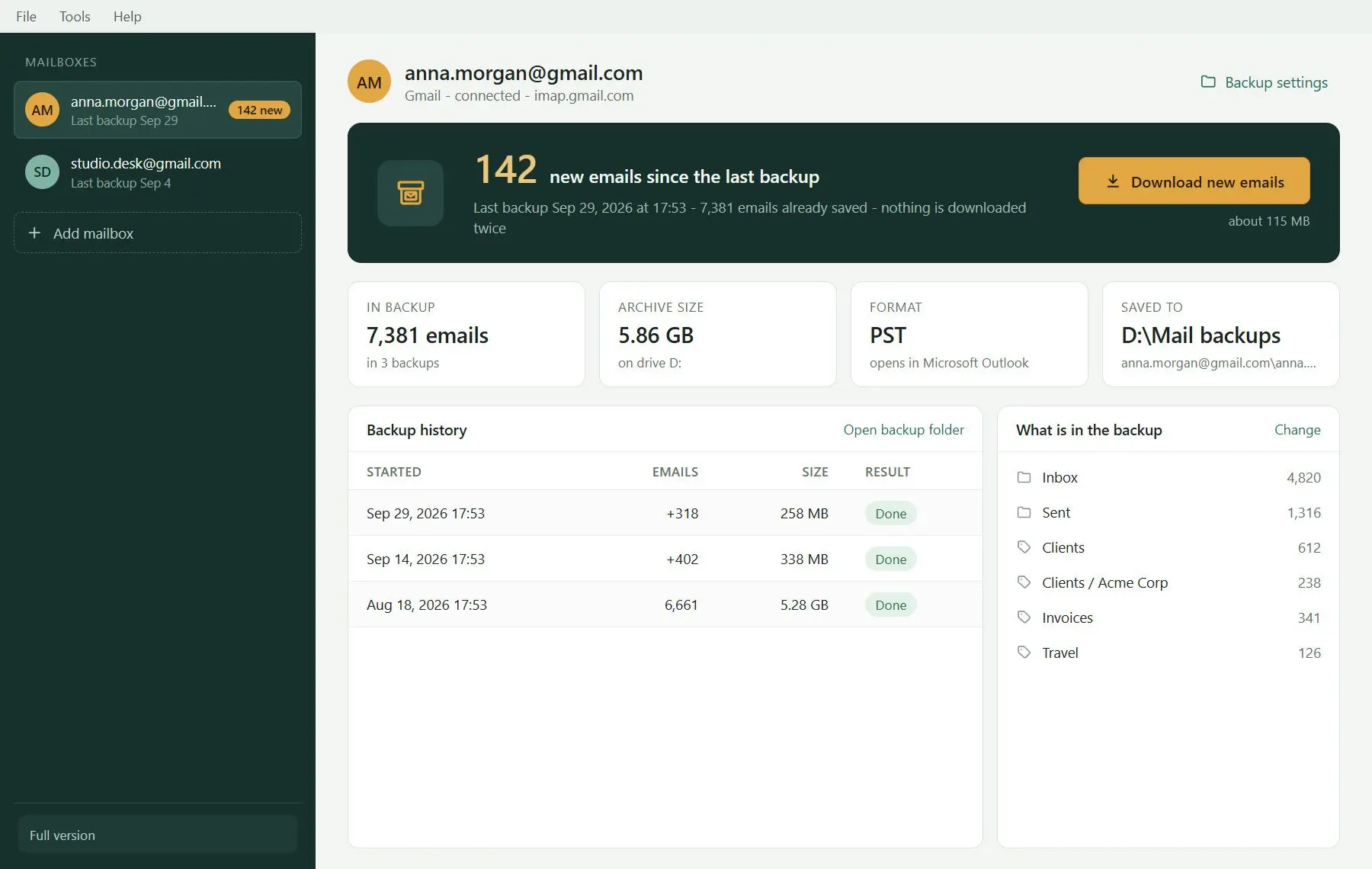
Sign in to a personal Gmail account with an app password, tick the labels you want and pick EML, MBOX or PST. The copy lands in a folder you choose, and the next run adds only what arrived since the last one.
Google Takeout is a one-off, not a backup
Takeout packs the whole mailbox into an archive, hands you a download link that expires in about a week, and the next time you want a current copy it does all of it again. Your labels end up as a header line inside each email. What most people want is simpler: a copy of their Gmail on their own disk that stays up to date, with labels they can still find. That is the job here, and it is mail only - contacts, calendar and Drive stay with Takeout.
How to use it
Create an app password
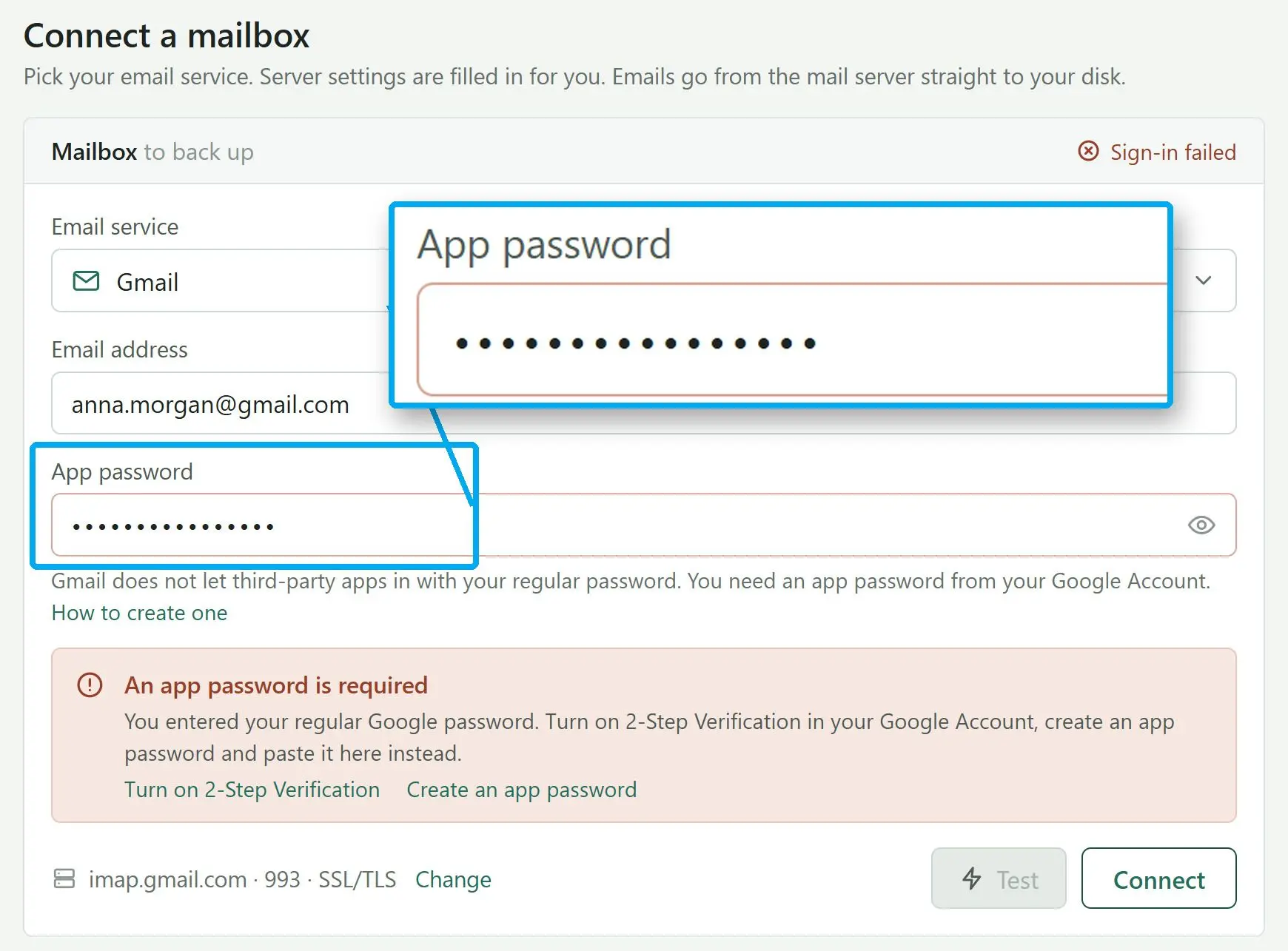
Google lets a mail program in with an app password, not your regular one, and offers it only when 2-Step Verification is on. The sign-in screen links straight to both Google pages, so the setup takes a couple of minutes.
Tick the labels
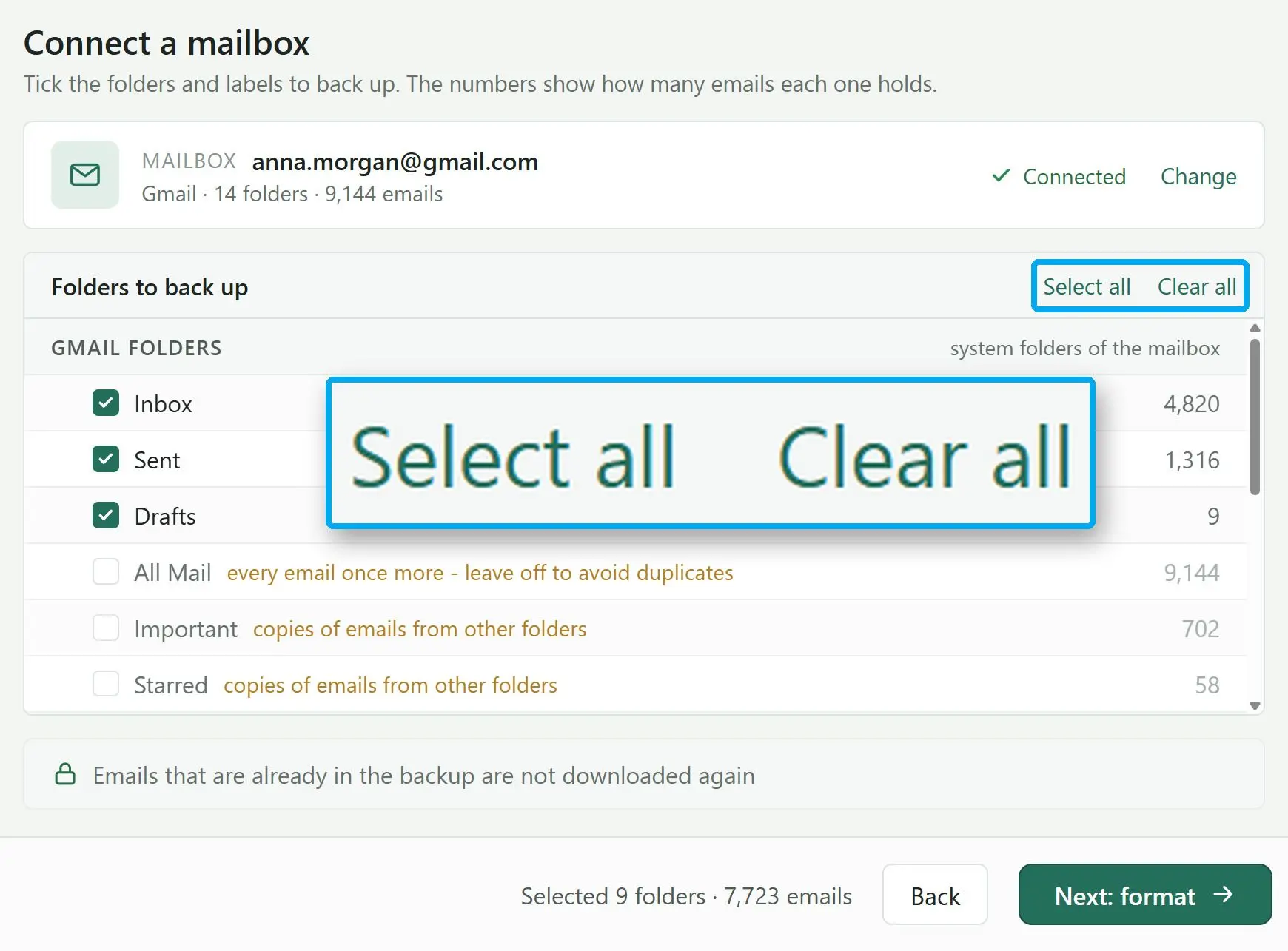
Every system folder and label is listed with its email count. All Mail, Important and Starred start unticked, because All Mail holds every email a second time. Spam and Trash start unticked too.
Pick a format and run it
EML gives one file per email, MBOX one file per label, PST one Outlook data file for the whole account. Set the destination and start. Next time, open the same mailbox and click Download new emails.
Benefits

Labels stay apart
Each Gmail label becomes its own folder in the backup, with sub-labels nested under their parent. An email with two labels is saved in both folders and both copies are kept, so nothing is missing from the label you look in later.
Only new mail on the next run
The program remembers what it already saved to that folder. The Home screen shows how many new emails are waiting, and one click fetches just those. A run you stop, or one that loses the connection, continues from the same email without duplicates.
Your mailbox is only read
Nothing in Gmail is deleted, moved or marked as read. Mail goes from Google's server straight to your disk and never passes through a server of ours. The password is not saved, so you type it again in each new session.
Why people use it
PST without Outlook on the PC
The Outlook data file is written by the program itself, so Outlook does not have to be installed where the backup runs. You get one PST per account with the full label tree inside, and the next backup appends to that same file instead of starting a second one.
A big mailbox goes in several sittings
Google caps how much mail one account can download over IMAP in a day. When a large mailbox hits that cap, the program stops and tells you. Open the mailbox again later, click Continue backup, and it picks up where it left off.
Made for personal Gmail
This edition connects to Gmail only, and sign-in is by app password - there is no Sign in with Google window. Personal Gmail accounts work. Work and school accounts on Google Workspace are not supported, because an app password cannot be created there.
FAQ
System Requirements
Email Backup to PST and MBOX
Languages
3.6
68.2 Mb
August 21, 2026
- Windows 11/10/8.1/8/7 (32/64 bit)
- Intel i3, AMD Ryzen 5 or above
- 4 GB of RAM or above
- NVIDIA® GeForce® series 8 and 8M, Intel® HD Graphics 2000, Quadro FX 4800, Quadro FX 5600, AMD Radeon™ R600, Mobility Radeon™ HD 4330, Mobility FirePro™ series, Radeon™ R5 M230 or higher graphics card with up-to-date drivers
- 1280 × 768 screen resolution, 32-bit color
- 1 GB of free hard disk space or above
GRT requirements trial note