
Bulk Web Page to PDF Exporter
Saved Pages In, One PDF Out
Convert a folder of saved .html, .htm and .xhtml pages to PDF on your own PC, pictures and styles included, or join them into one document. Free trial.
Full seller details: Legal information.
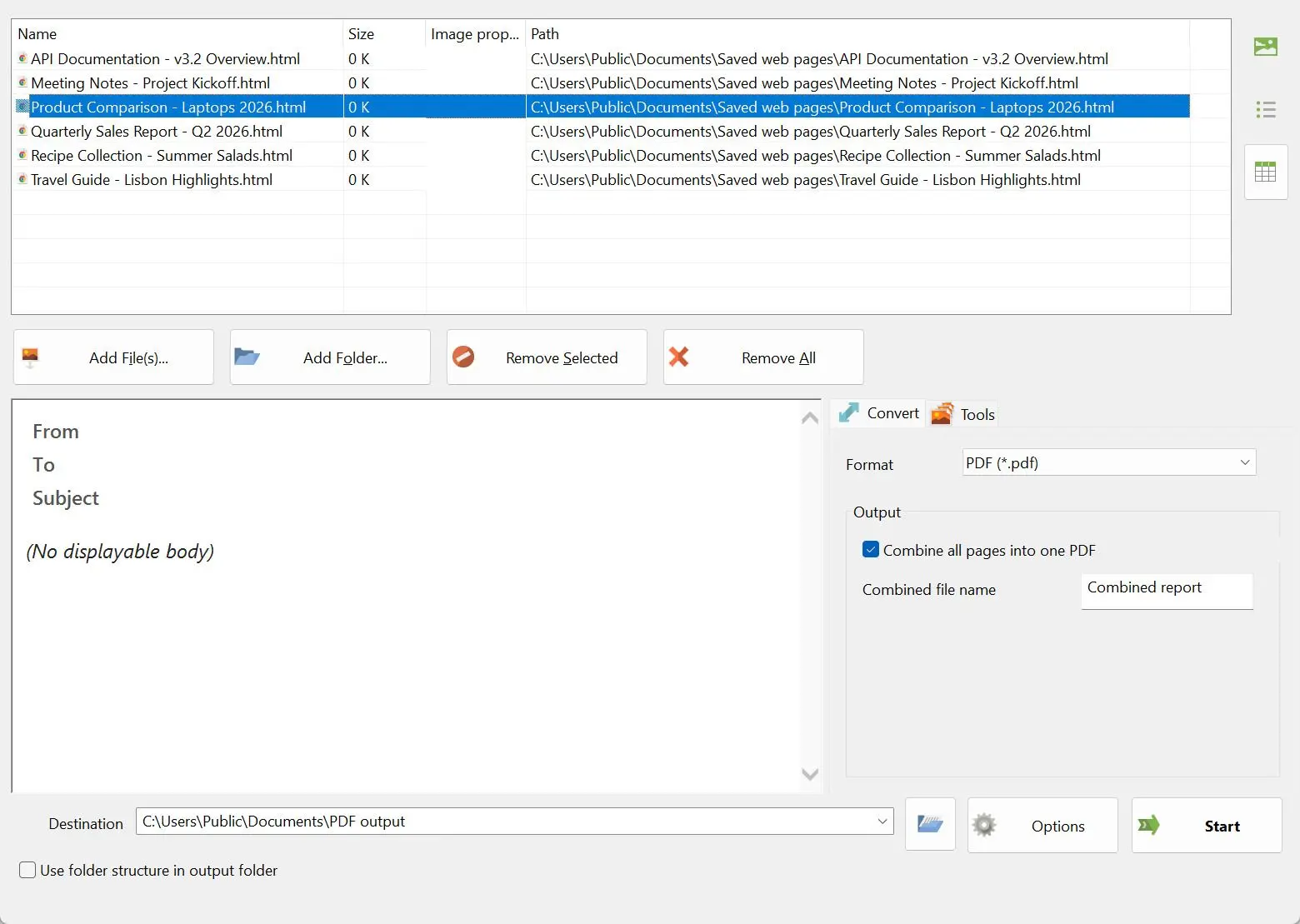
Add a folder of .html, .htm or .xhtml files and press Start once. Each page comes out as a PDF with its pictures and styles, read from the resources folder saved beside it - or tick Combine all pages into one PDF and the whole run becomes a single document.
Print to PDF is fine for one page. You have ninety.
A helpdesk export, a static documentation build, a season of articles saved for a research project - HTML tends to arrive by the directory, each file with a folder of images next to it. A browser will turn any one of them into a PDF, and then you open the next one and do it again. Online converters accept a batch, but first you upload files that were never meant to leave the machine, and the folder with the pictures usually stays behind.
How to use it
Add the saved pages
Add the files or the folder that holds them. .html, .htm and .xhtml go into the same list. Leave each resources folder where it was saved, next to its page - that is where the pictures and stylesheets are read from.
Choose separate files or one document
Left alone, every page becomes a PDF of its own. Tick Combine all pages into one PDF and the run is joined into a single file, in the order the pages sit in the list.
Press Start
The pages are rendered on your PC and written as files to the output folder. Nothing is sent to a printer and nothing asks for a connection along the way, so it works the same on a laptop with the Wi-Fi switched off.
Benefits
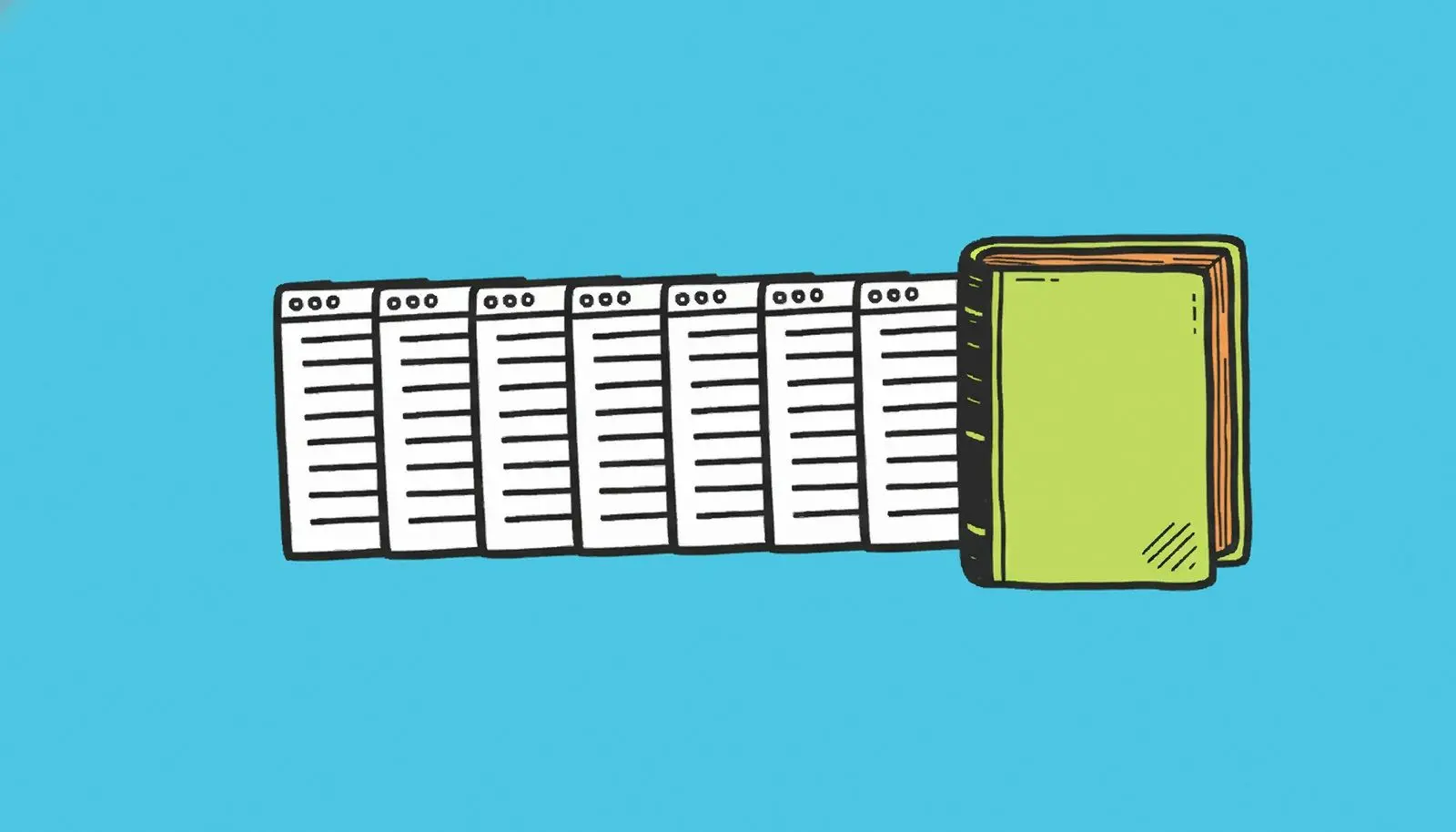
A whole run joined into one PDF
Forty saved pages are forty attachments, and nobody on the other end knows which to open first. With Combine all pages into one PDF ticked they become one file you can send, file away or hand to an auditor. Joining applies to PDF output; it is a checkbox, so separate files are still one click away.
Pictures and styles come from the folder beside the page
A page saved from a browser is really two things: the .html file and a folder of images and stylesheets next to it. That folder is read during conversion, so the PDF has the photos and the layout rather than bare text around empty frames. The folder has to be there - if only the .html file was copied, there is nothing to read.
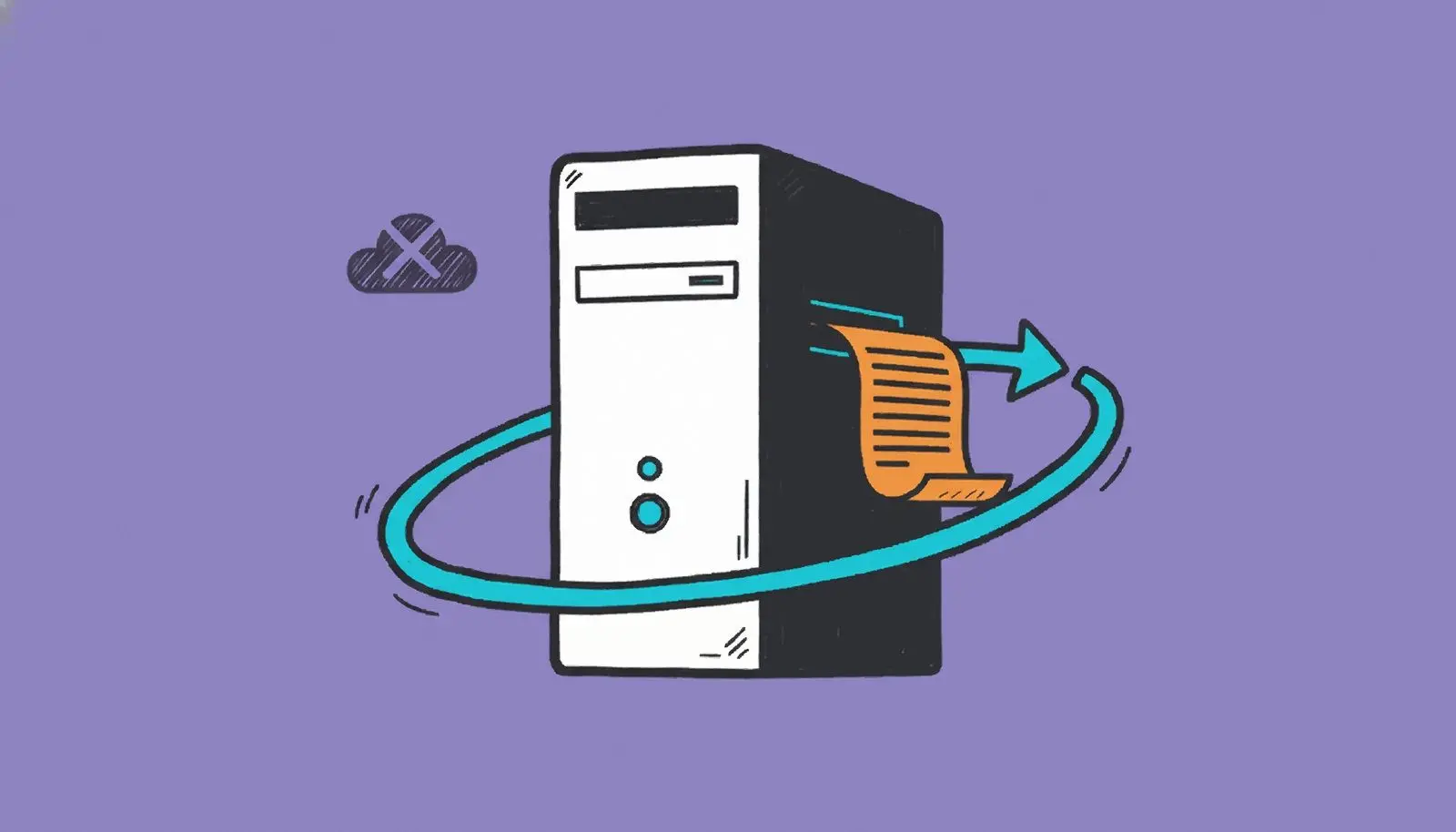

Every page stays on your own disk
Conversion runs with the network closed. Your files are not uploaded, and the page is not allowed to call out either, so a tracking pixel or a remote script in a saved page gets no answer. That is what makes it usable for internal reports, invoices and client records that must not pass through a website.
Why people use it
Modern layouts keep their shape
The renderer is WebView2, which is built on Chromium, so CSS Grid, Flexbox and CSS variables are laid out properly instead of collapsing into one long column. A pixel-for-pixel match with what Chrome shows is not promised, but a page built this decade still looks like itself.
Plain text when you want just the words
The output format can be switched from PDF to TXT. That is the one to pick when the pages are headed for a search index or a text comparison rather than for somebody to read, and the layout would only be in the way.
One list for .html, .htm and .xhtml
Older exports end in .htm, some tools write .xhtml, browsers save .html. All three share one list and one set of settings, so a mixed folder goes through in a single run.
FAQ
System Requirements
Bulk Web Page to PDF Exporter
Languages
3.9
18.5 Mb
October 13, 2026
- Windows 11/10/8.1/8/7 (32/64 bit)
- Intel i3, AMD Ryzen 5 or above
- 4 GB of RAM or above
- NVIDIA® GeForce® series 8 and 8M, Intel® HD Graphics 2000, Quadro FX 4800, Quadro FX 5600, AMD Radeon™ R600, Mobility Radeon™ HD 4330, Mobility FirePro™ series, Radeon™ R5 M230 or higher graphics card with up-to-date drivers
- 1280 × 768 screen resolution, 32-bit color
- 1 GB of free hard disk space or above
GRT requirements trial note