
PST and OST Attachment Saver
Bulk-Extract Every Attachment From Outlook PST and OST Files
Pull every attachment out of Outlook .pst and .ost files in bulk and save them to a folder on your PC. Keeps the folder tree, de-dupes by content, skips inline signature logos. GRTSoft PST and OST Attachment Saver runs offline, free trial.
Full seller details: Legal information.
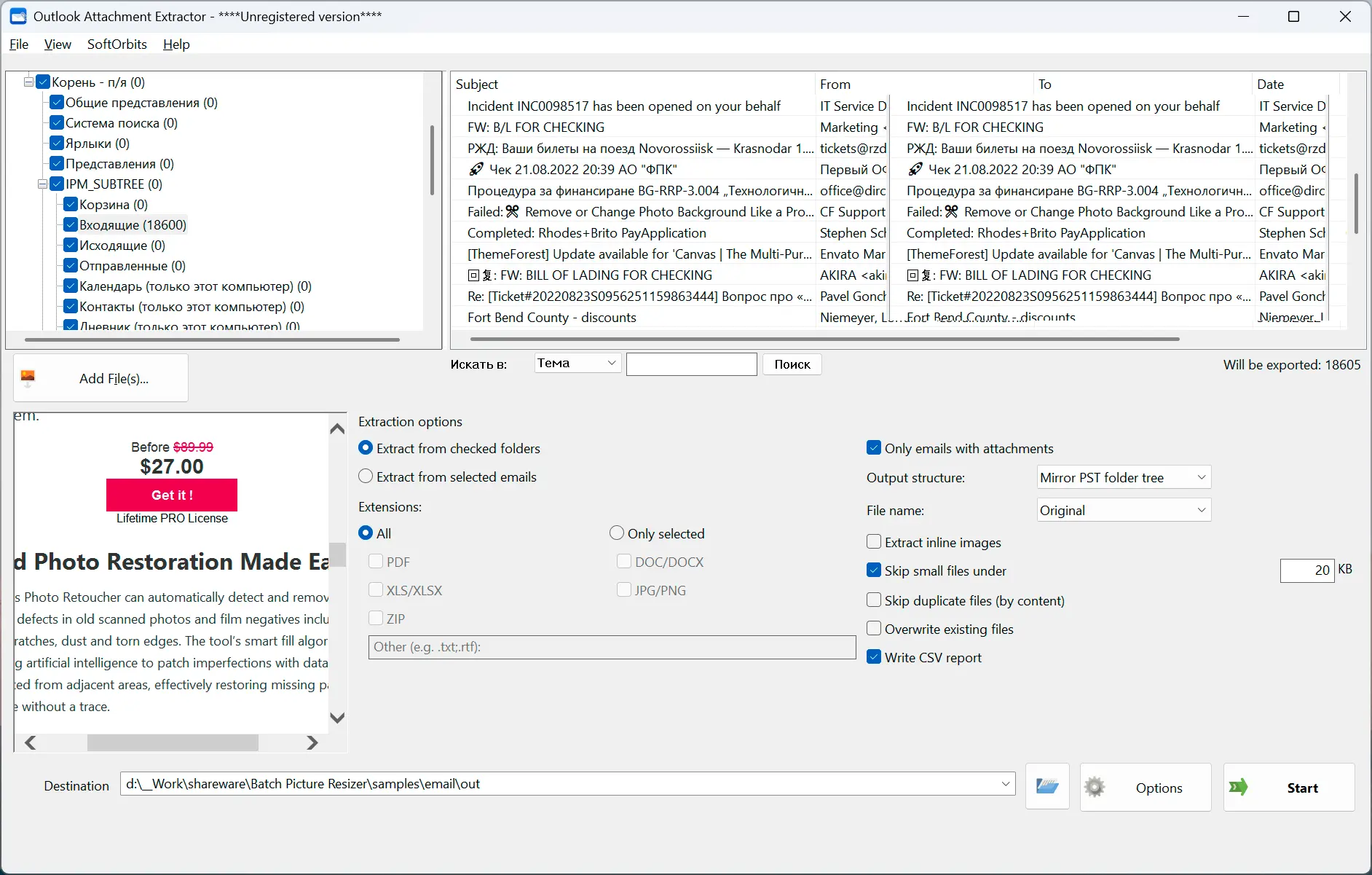
Open a .pst or .ost archive, tick the folders you want, and save every attachment to disk - Outlook does not even have to be installed.
When the files you need are buried in a mail archive
Years of invoices, contracts, and photos sit inside one .pst or .ost file, and saving them by hand means opening messages one at a time. This reads the archive directly, walks the folders you pick, and writes the attachments out as ordinary files - offline, on your own PC.
How to use it
Open your .pst or .ost file
Point it at the archive and the folder tree appears with checkboxes. Outlook does not need to be running or installed - the file is read directly.
Pick folders or messages and set the rules
Tick whole folders or select single messages, narrow the list by Subject, From, To, or Body, then choose which file types to keep and how the output is named and laid out.
Run it and get a folder of files
Attachments are written to disk with the PST folder tree rebuilt or flattened into one folder, plus a CSV report listing what came from which message.
Benefits
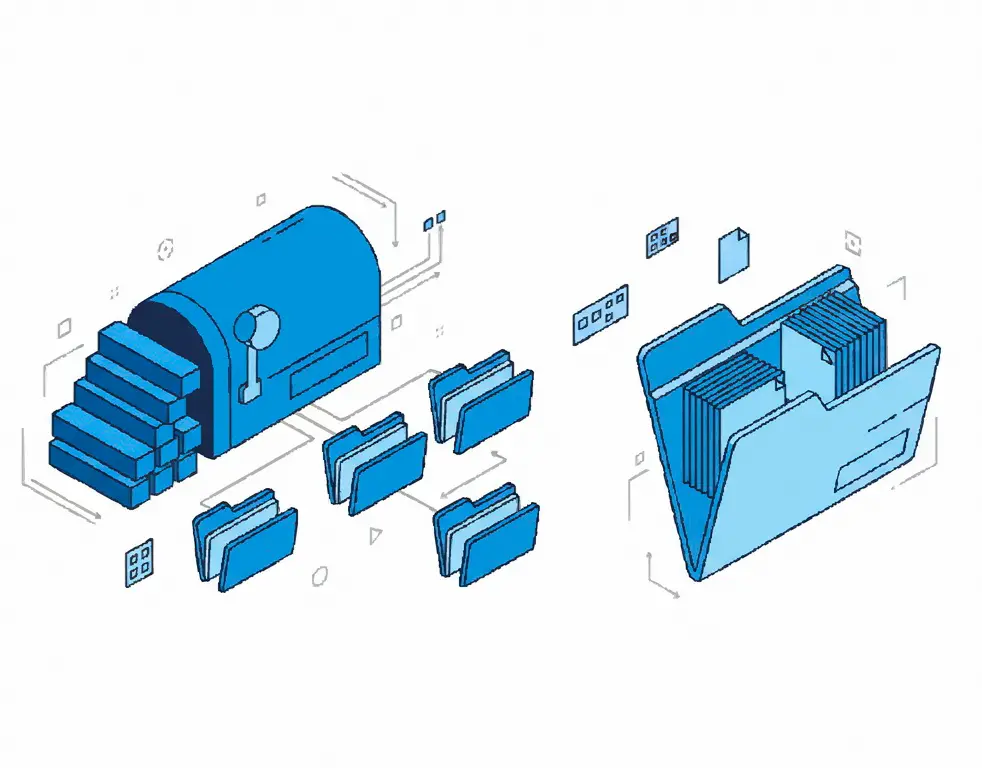
Documents, not signature logos
Inline images stay off by default and tiny files under a size you set are skipped, so you get the actual attachments instead of hundreds of logo.png files pulled from mail footers.
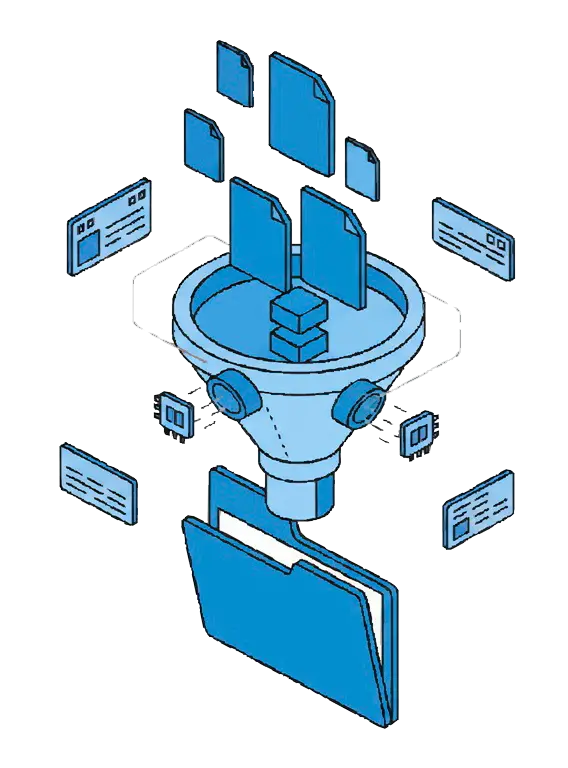
Real duplicate detection
Duplicates are matched by file content, not by filename, so the same attachment forwarded through dozens of messages lands on your disk once.
You decide what happens to name clashes
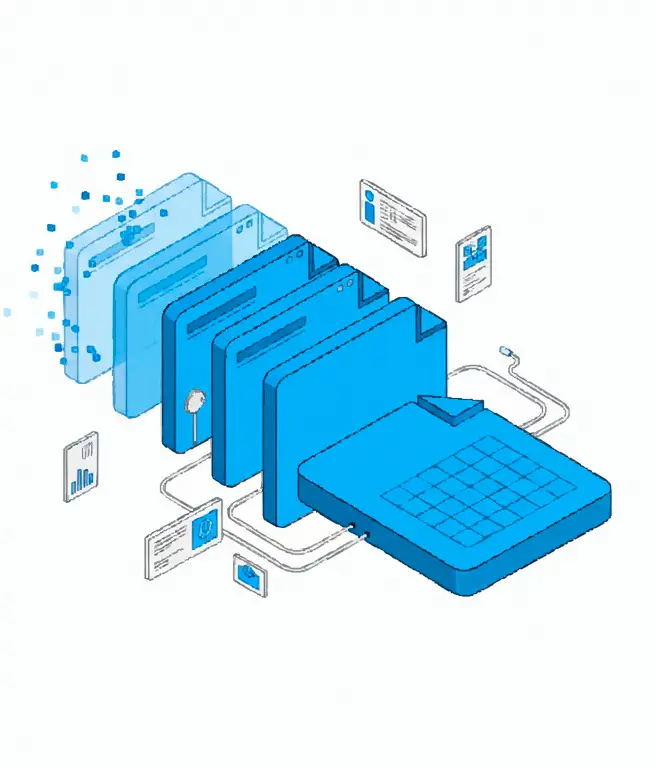
Two files called invoice.pdf will not silently overwrite each other - choose overwrite or automatic _1, _2 numbering up front, before the batch runs.
Why people use it
Filter by file type
Take everything, or tick only PDF, DOC/DOCX, XLS/XLSX, JPG/PNG, or ZIP - and add any other extension you need.
See which messages have attachments
The message list shows Subject, From, To, Date, Size, and an attachment count column, so you can tell what is worth extracting before you start.
Output laid out your way
Rebuild the PST folder hierarchy on disk or drop everything into a single folder, and keep original filenames or rename to Date_Subject_Name.
FAQ
System Requirements
PST and OST Attachment Saver
Languages
1.0
8 Mb
August 26, 2026
- Windows 11/10/8.1/8/7 (32/64 bit)
- Intel i3, AMD Ryzen 5 or above
- 4 GB of RAM or above
- NVIDIA® GeForce® series 8 and 8M, Intel® HD Graphics 2000, Quadro FX 4800, Quadro FX 5600, AMD Radeon™ R600, Mobility Radeon™ HD 4330, Mobility FirePro™ series, Radeon™ R5 M230 or higher graphics card with up-to-date drivers
- 1280 × 768 screen resolution, 32-bit color
- 1 GB of free hard disk space or above
GRT requirements trial note